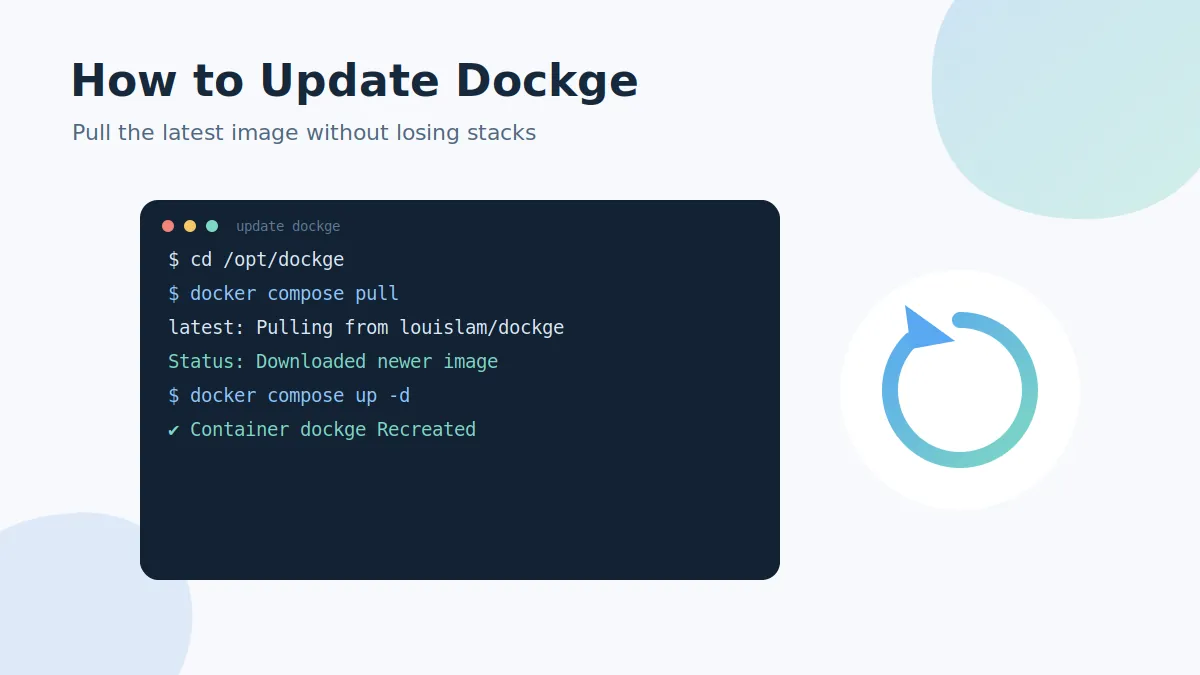
Updating Dockge takes two commands and never touches your stacks, because every stack is just a file in /opt/stacks. Here is the safe upgrade routine, plus how to verify the version and roll back if needed.
The standard update procedure
cd /opt/dockge
docker compose pull
docker compose up -d
pull downloads the newest image; up -d recreates the container on it. The whole process usually finishes in under a minute, and running stacks keep running throughout.
What survives an update
- Your stacks — untouched, they live outside the Dockge container.
- Your login and settings — stored in the mounted data volume.
- Running containers — only the Dockge container itself restarts.
Check which version you are running
The version is shown at the bottom of the Dockge interface. From the shell you can also inspect the image tag:
docker inspect dockge --format '{{.Config.Image}}'Rolling back to a previous version
If a release misbehaves, pin the previous tag in /opt/dockge/compose.yaml:
services:
  dockge:
    image: louislam/dockge:1.4
Then run docker compose up -d again. Return the tag to :1 or :latest when you want to move forward.
Update problems?
A failed pull is usually a network or disk-space issue — run docker system df to check space. If the interface won't load after updating, clear the browser cache and see the common errors guide. Keeping Dockge current is also the best security habit alongside a strong admin login.