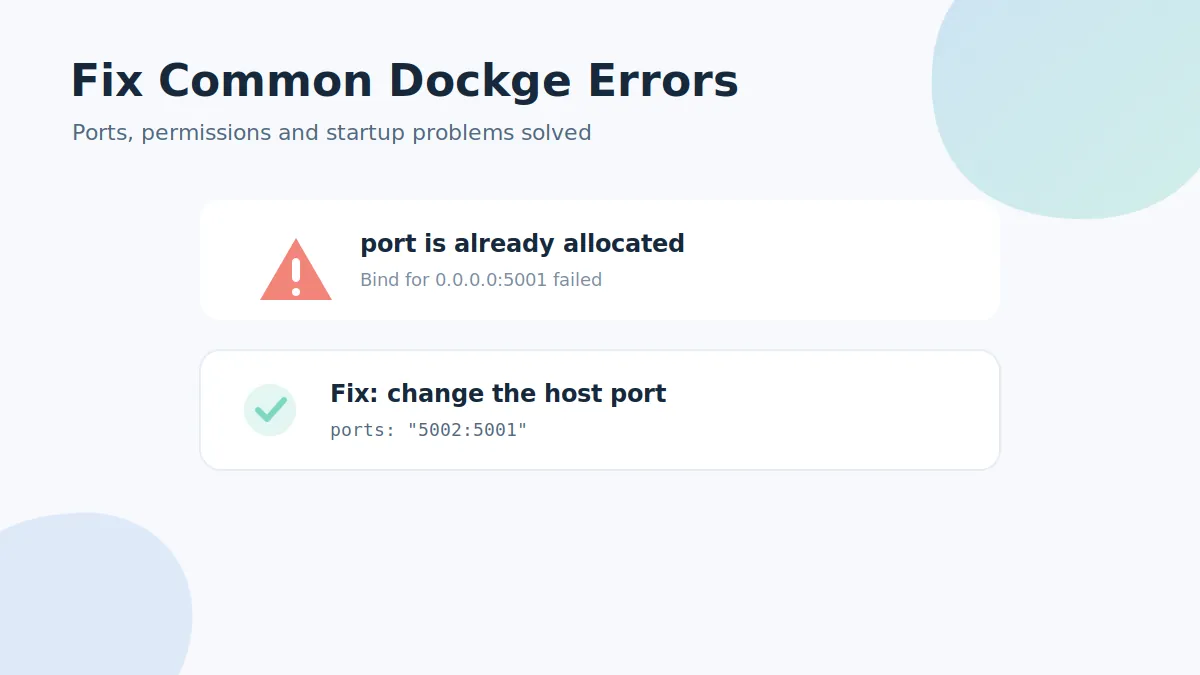
Most Dockge problems trace back to a handful of causes: a busy port, a wrong path, missing permissions or a proxy that drops WebSockets. Work through the fixes below and you'll cover nearly every report we see.
1. "Port is already allocated"
Symptom: docker compose up -d fails with Bind for 0.0.0.0:5001 failed.
Fix: another service holds port 5001. Change the host side of the mapping in /opt/dockge/compose.yaml (e.g. 5002:5001) and re-run the command. Full details in the port guide.
2. Existing stacks don't appear
Symptom: folders with compose files sit on the server, but the sidebar stays empty.
Fix: Dockge only scans its stacks directory (/opt/stacks by default). Move each stack folder there, and if you customised the location, make sure the volume path is identical inside and outside the container and matches DOCKGE_STACKS_DIR.
3. "Permission denied" on /var/run/docker.sock
Symptom: the interface loads but every action fails with a socket permission error.
Fix: confirm the Docker socket is mounted in Dockge's compose file and that the Docker daemon is running. On hardened systems, check that no security module blocks socket access, then restart the container.
4. Blank page or endless loading behind a reverse proxy
Symptom: Dockge works on ip:5001 but not through your domain.
Fix: the reactive UI needs WebSockets. Enable upgrade/WebSocket forwarding in nginx, Caddy or Traefik for the Dockge host. In nginx that means proxy_set_header Upgrade $http_upgrade; and proxy_set_header Connection "upgrade";.
5. Can't sign in / forgotten password
Fix: reset it from the shell — the exact commands are in the login guide.
6. Update didn't seem to apply
Fix: run both commands (pull then up -d) from /opt/dockge, then hard-refresh the browser. See the update guide for the full routine.
Still stuck?
Collect the container logs before asking for help — they usually name the exact cause:
docker logs dockge --tail 100