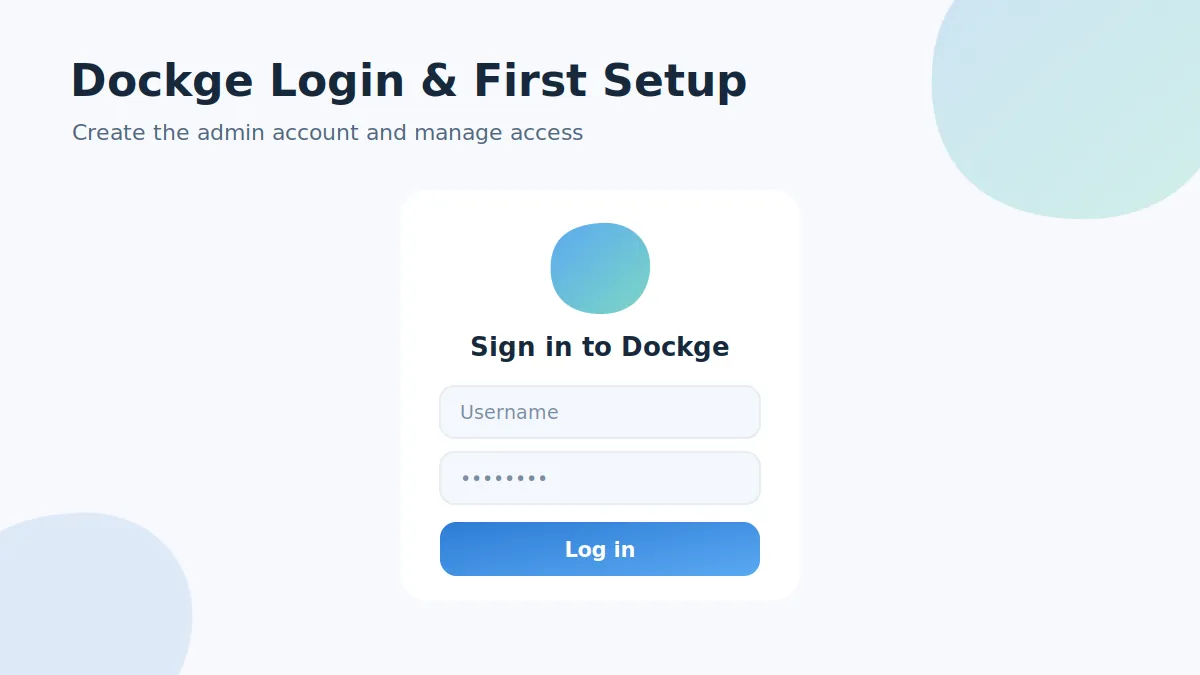
Searching for a Dockge default login? There isn't one — and that's by design. Dockge asks you to create the admin account the first time the interface loads. This guide covers the first-run setup, day-to-day sign-in and what to do when a password is lost.
Creating the first Dockge login
- Finish the installation and confirm the container is running.
- Open
http://your-server-ip:5001in a browser. - Dockge shows a one-time setup form: choose an admin username and a strong password.
- Submit — you are signed in and land on the dashboard.
Because the setup form appears to whoever reaches the page first, create the account immediately after starting Dockge, especially on machines other people can reach.
Why there is no default password
Shipping fixed credentials is one of the most common security holes in self-hosted software. Dockge avoids the problem completely: no account exists until you create one, so there is nothing for a bot to guess straight after install.
How to reset a forgotten Dockge password
If you lose the admin password, reset it from the server shell:
# open a shell inside the Dockge container
docker exec -it dockge bash

# run the built-in reset command and follow the prompt
npm run reset-password

# leave the container and restart it
exit
docker restart dockge
Sign in again with the new credentials. If the container name differs, find it with docker ps.
Login security checklist
- Use a long, unique password from a password manager.
- Never expose port 5001 directly to the internet; use a VPN or an authenticated reverse proxy.
- Keep Dockge current — the update guide shows the two-command upgrade.