Install and manage Dockge with confidence
Dockge is an open-source, self-hosted manager for compose.yaml stacks. This independent guide explains installation, port 5001, updates and troubleshooting while linking software downloads back to the official Dockge project.
Not the official Dockge website. dockge.org is an independent community resource and is not affiliated with Louis Lam or the Dockge project.
- MIT licensed
- 5-minute install
- Files stay yours
A compose-first Docker manager that respects your files
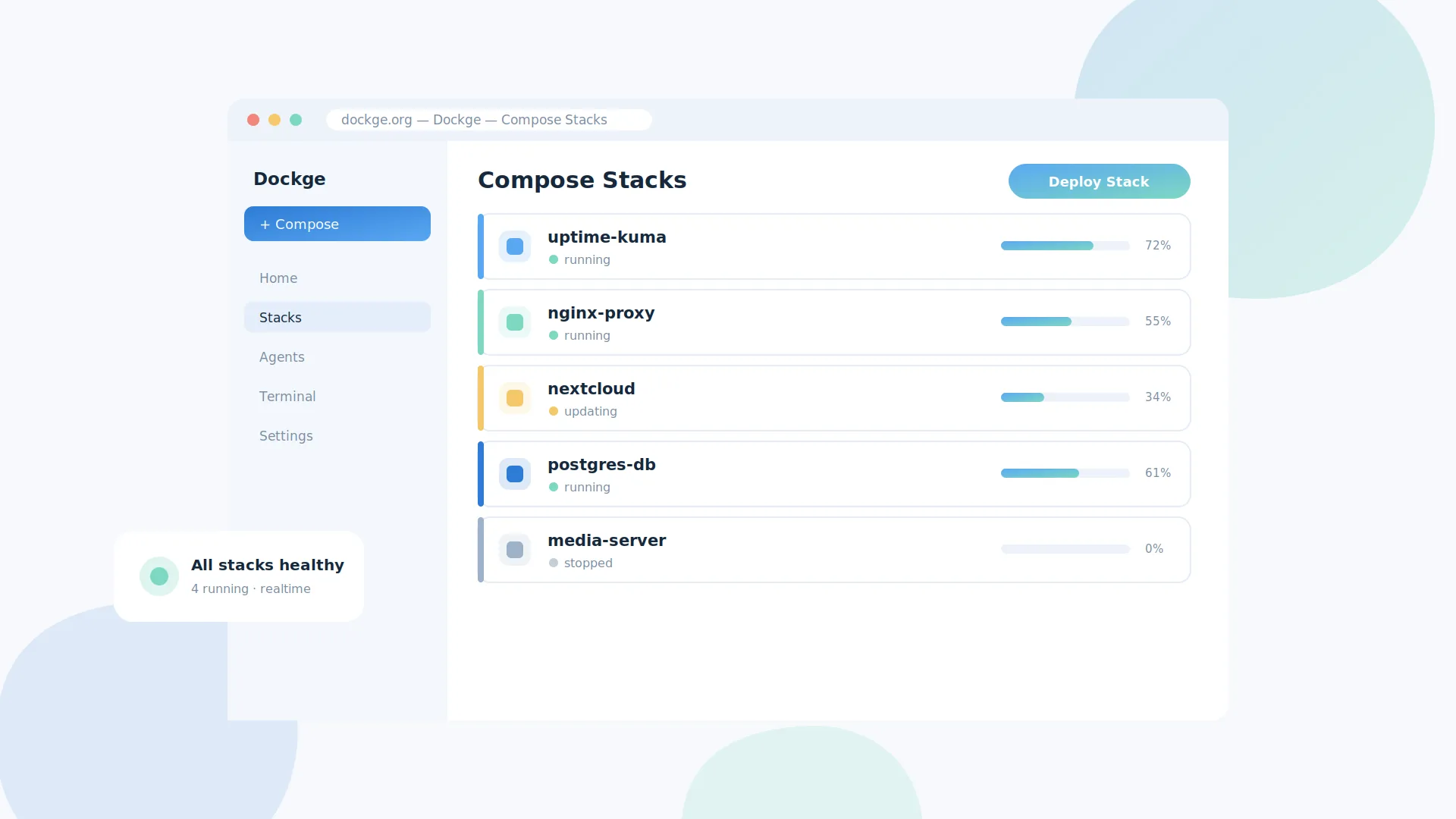
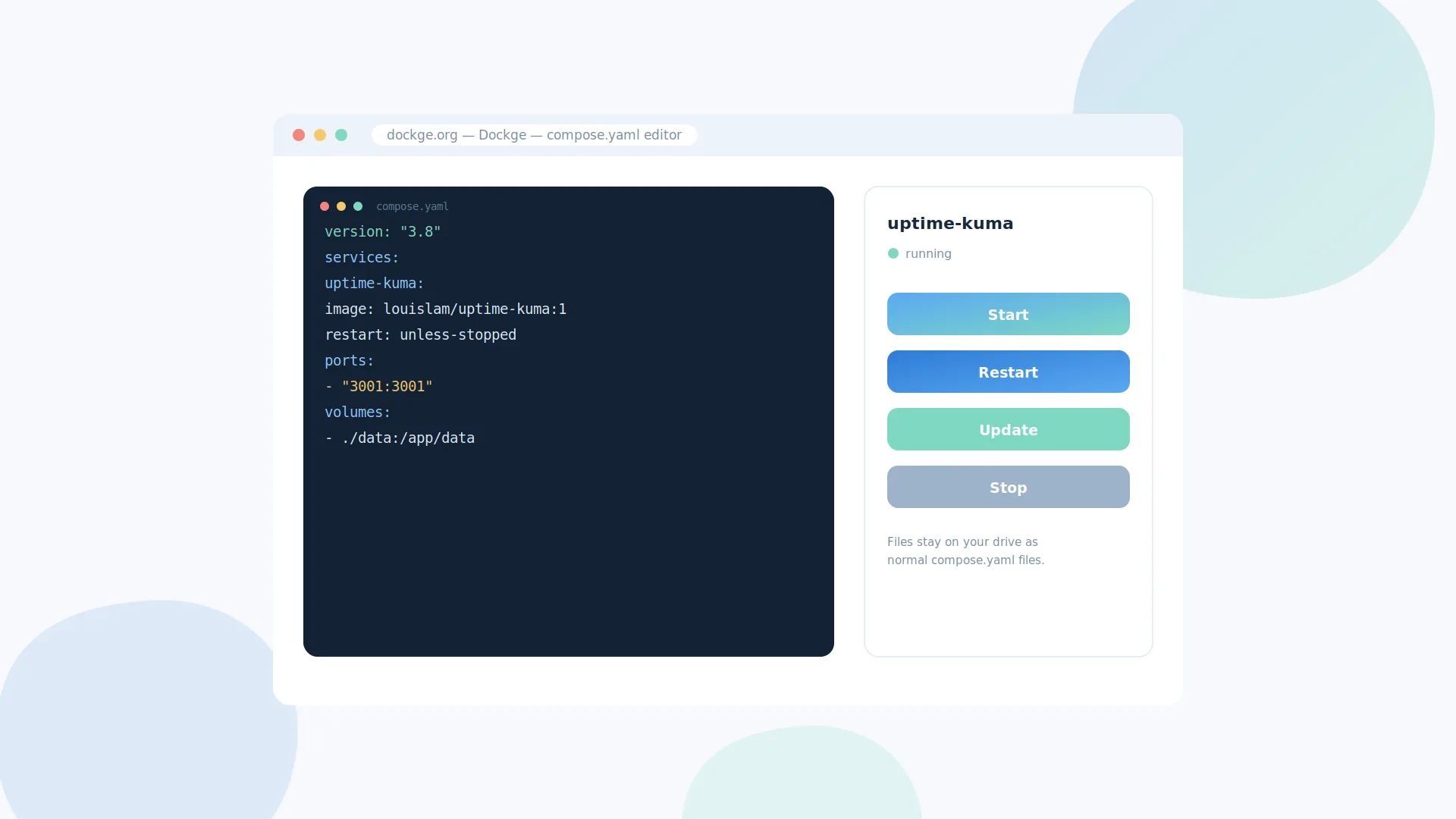
Dockge is an open-source project by Louis Lam, the developer behind Uptime Kuma. Instead of hiding your configuration inside a database, Dockge keeps every stack as a normal compose.yaml file in a folder on your server — usually /opt/stacks.
That single design decision means Dockge never kidnaps your compose files. You can edit stacks in the reactive web interface, in the interactive editor, or straight from a terminal with regular docker compose commands. Everything stays in sync because the file on disk is the single source of truth.
Everything you need to run compose stacks
Dockge focuses on doing one job brilliantly: managing Docker Compose stacks with a fast, modern interface.
Full stack management
Create, edit, start, stop, restart and delete compose stacks, and update Docker images with one click.
Interactive compose editor
Edit compose.yaml in a smart editor with highlighting, so configuration changes take seconds.
Optional browser Console
Dockge includes a browser Console, but version 1.5.0 disables it by default for security. Enable it only when needed and after reviewing the upstream risk.
Multi-agent support
Manage stacks on multiple Docker hosts from a single Dockge interface using agents (v1.4.0+).
docker run converter
Paste any docker run command and Dockge converts it into a clean compose.yaml service.
Reactive in real time
Pull, up and down progress plus terminal output stream live into the interface — no refreshing.
From download to running stacks in four steps
Dockge itself runs as a Docker container, so setup is nothing more than one compose file.
Install Docker
Make sure Docker 20+ (or Podman) is running on a supported Linux server, VM or Raspberry Pi.
Create the folders
Make /opt/stacks for your stacks and /opt/dockge for Dockge's own compose file.
Start Dockge
Place the official compose.yaml in /opt/dockge and run docker compose up -d.
Open port 5001
Visit http://your-ip:5001, create the admin login and deploy your first stack.
Runs where your containers run
Dockge supports every major Linux distribution that can run Docker or Podman, across three CPU architectures.
Native Windows is not listed as supported in the official Dockge README. WSL2-based setups are an unofficial path and should be verified separately.
Who uses Dockge?
From a single Raspberry Pi to a rack of Docker hosts, Dockge fits anywhere compose files live.
Home lab & self-hosting
Run Uptime Kuma, Nextcloud, media servers and more from one dashboard on your home server or NAS.
VPS & small servers
Keep a lightweight footprint on small cloud instances while still getting a full web management UI.
Teams & multiple hosts
Use agents to manage stacks across several Docker machines from one central Dockge interface.
Dockge install in one compose file
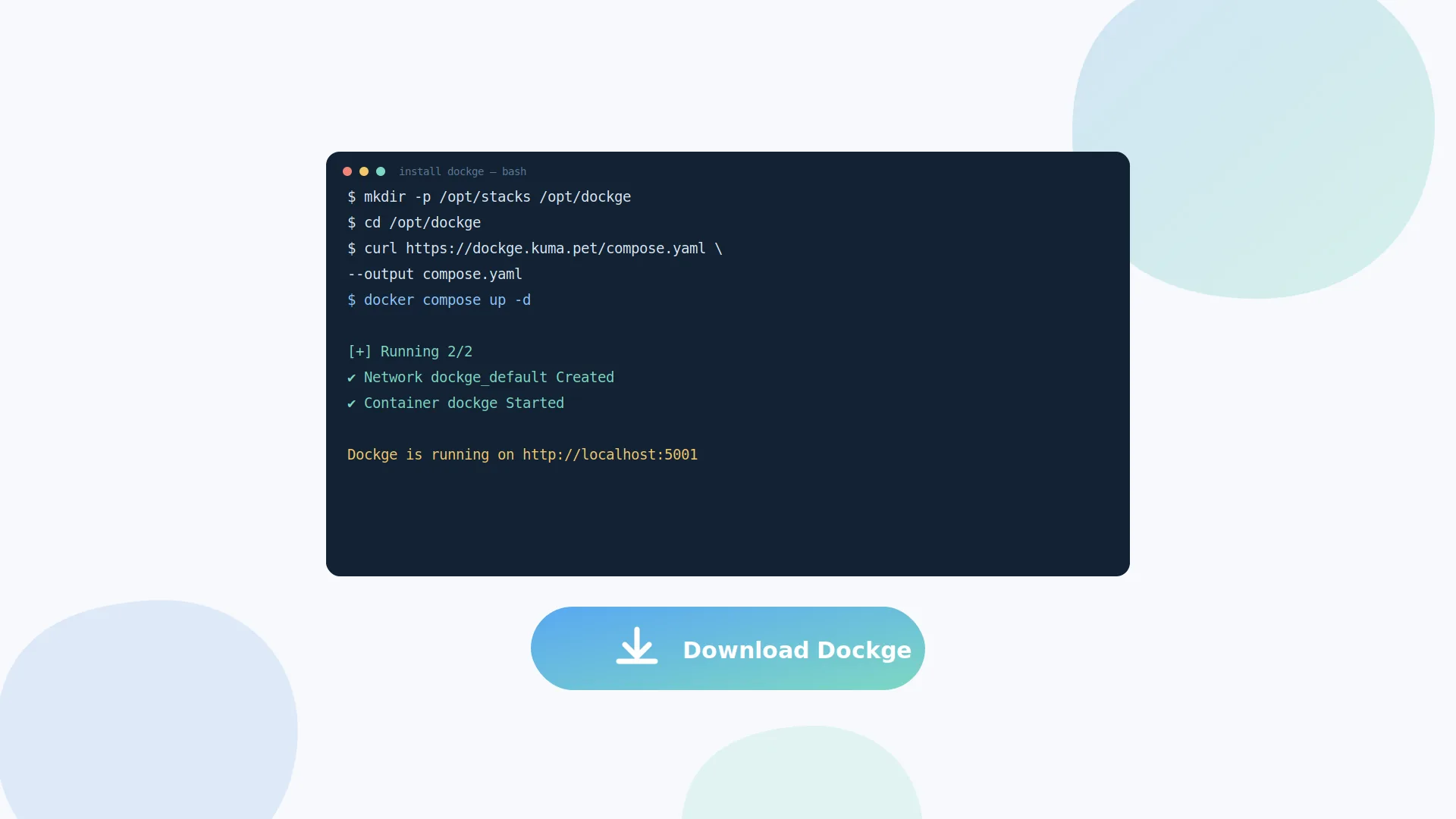
These are the standard commands for a default installation on Linux. Run them as root or with sudo.
# Create directories that store your stacks and Dockge's own stack
mkdir -p /opt/stacks /opt/dockge
cd /opt/dockge

# Download the official compose.yaml
curl https://raw.githubusercontent.com/louislam/dockge/master/compose.yaml --output compose.yaml

# Start the server
docker compose up -d

# Dockge is now running on
# http://localhost:5001
After the first start
Open port 5001 in a browser and create your admin username and password — there is no default login. Then click + Compose to deploy your first stack, or drop existing stack folders into /opt/stacks.
Prefer different paths or ports?
Edit compose.yaml before starting: change the port mapping (for example 7001:5001) or point the stacks volume at another directory. Full details are in our step-by-step install guide.
Install Dockge from official sources
Use the official Dockge repository and Compose definition. This site does not redistribute Dockge binaries or present a development-branch ZIP as the normal installation method.
View official install instructions ↗
Prefer a guided walkthrough? Read our step-by-step installation guide →
Download and run Dockge safely
Official sources only
Always download Dockge from the official louislam/dockge GitHub repository or pull the official image from Docker Hub. Avoid repackaged installers from unknown websites — the genuine project never ships a Windows .exe installer.
Protect the interface
Dockge controls your Docker daemon, so treat it like root access. Use a strong admin password, avoid exposing port 5001 directly to the internet, and place it behind a VPN or reverse proxy with authentication when remote access is needed.
An honest look at Dockge
What we like
- File-based — compose files stay on your drive, no lock-in
- Clean, reactive interface with real-time progress and logs
- Focused feature scope that suits many homelabs and small Compose-centric servers
- docker run → compose converter; optional browser Console (disabled by default in 1.5.0)
- Free, open source and actively developed
Worth knowing
- Compose stacks only — no Kubernetes or Swarm management
- Native Windows is not officially supported
- Fewer user-management and RBAC features than Portainer
- Stacks must live in the configured stacks directory to appear
Dockge at a glance
| Stable release checked | 1.5.0 — verified 30 Aug 2026; check upstream releases before installing |
|---|---|
| Software name | Dockge |
| Developer | Louis Lam (creator of Uptime Kuma) |
| License | MIT — free and open source |
| Category | Docker Compose stack manager (self-hosted) |
| Platforms | Linux (Ubuntu, Debian, Raspbian, CentOS, Fedora, Arch) via Docker 20+ or Podman |
| Architectures | amd64 · arm64 · armv7 |
| Default port | 5001 |
| Default stacks directory | /opt/stacks |
| Notable feature since v1.4.0 | Multi-agent support for managing several Docker hosts |
Quick fixes for common Dockge problems
"Port is already allocated"
Another service holds port 5001. Change the host mapping in Dockge's compose.yaml (e.g. 5002:5001) and run docker compose up -d again.
Stacks don't show up
Dockge only scans its stacks directory. Move stack folders into /opt/stacks and keep the path identical inside and outside the container.
Forgot the admin password
Exec into the container and run the built-in reset-password command, then restart Dockge and sign in with the new credentials.
Blank page behind a proxy
The reactive UI needs WebSockets. Enable WebSocket/upgrade forwarding in your reverse proxy configuration for the Dockge host.
Popular Dockge guides
Hands-on tutorials covering installation, the default port, login setup and more.
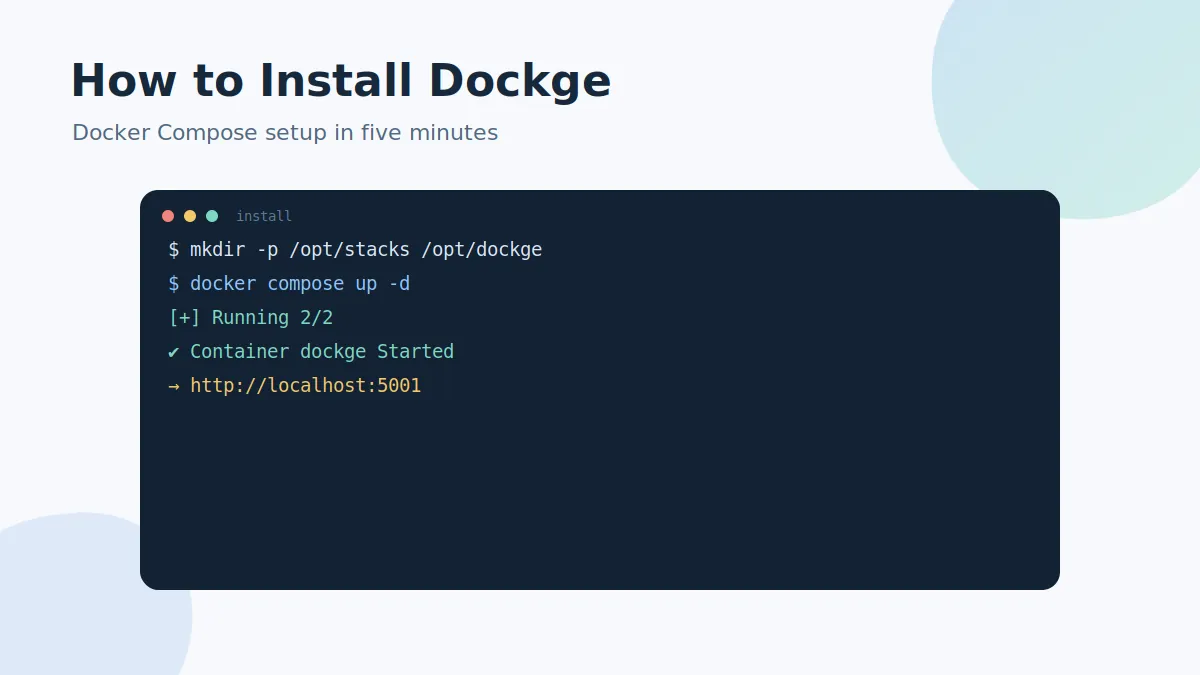
How to Install Dockge
The complete Docker Compose installation walkthrough, from directories to first login.
Read the guide →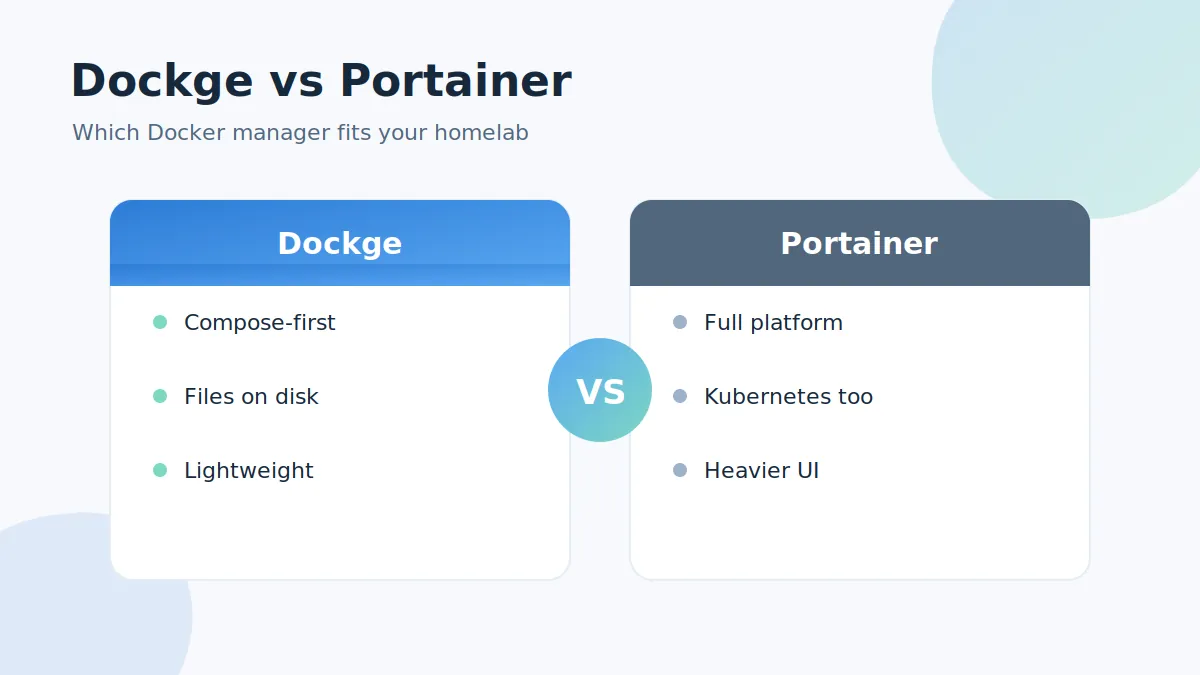
Dockge vs Portainer
Feature-by-feature comparison to help you pick the right Docker manager for your setup.
Read the guide →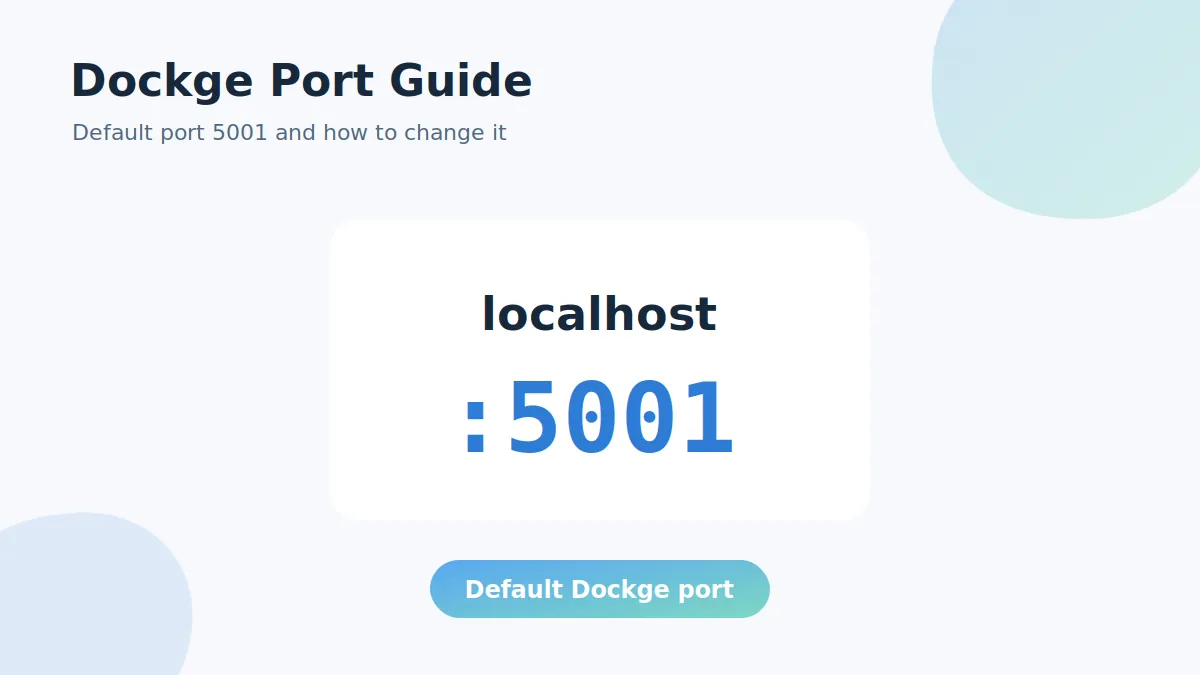
Dockge Port Explained
What port 5001 does, how to change it safely and how to fix port conflicts.
Read the guide →Official sources used by this guide
Release-sensitive instructions are checked against the upstream project. Always verify before changing a production Docker host.
Dockge frequently asked questions
Twenty answers covering the basics, setup, daily use and troubleshooting.
Dockge is a free, self-hosted web manager for Docker Compose stacks. It lets you create, edit, start, stop, restart, update and delete compose.yaml stacks from a clean, reactive interface.
Yes. Dockge is open-source software released under the MIT license, so the download and every feature are completely free.
Dockge listens on port 5001 by default. After installation you open http://your-server-ip:5001 in a browser. You can map a different host port in the compose file, for example 7001:5001.
Dockge focuses on Docker Compose stacks and keeps managed Compose files on disk. Portainer is a broader container-management platform and supports multiple stack deployment workflows, including Git-backed stacks. Choose based on the scope and team controls you need.
By default Dockge stores stacks in /opt/stacks on the host. Files remain plain compose.yaml files, so you can keep using normal docker compose commands alongside Dockge.
Native Windows is not listed as supported in the official Dockge README. WSL2-based deployments may be possible, but they are outside the documented native-support path and should be verified independently.
Yes. Since version 1.4.0 Dockge supports multiple agents, letting you manage stacks on several Docker hosts from one interface.
No. Dockge is file-based and never locks your configuration into a database. Existing stacks placed in the stacks directory appear in the interface and stay fully usable from the command line.
Dockge is a widely used open-source project with public source code on GitHub. As with any container manager, download it only from the official repository and protect the web interface with a strong admin password.
You need Docker 20+ or Podman on a supported Linux distribution such as Ubuntu, Debian, Raspbian (Bullseye or newer), CentOS, Fedora or Arch Linux, on armv7, arm64 or amd64 hardware.
The first time you open the Dockge web interface on port 5001, it asks you to create the admin username and password. There is no default login shipped with the software.
From Dockge’s Compose directory, run docker compose exec dockge npm run reset-password and follow the interactive prompt. Adjust the service or path if your deployment differs.
Change into the directory that holds Dockge's own compose.yaml, run docker compose pull followed by docker compose up -d, and the container is recreated on the newest image without touching your stacks.
Yes. Paste any docker run command into the converter on the Dockge home screen and it generates the matching compose.yaml service definition instantly.
Another service on the host is already using port 5001. Either stop that service or change the host-side port mapping in Dockge's compose.yaml, for example 5002:5001, and run docker compose up -d again.
Dockge only scans its configured stacks directory, /opt/stacks by default. Move or link each stack folder containing a compose.yaml into that directory, keeping the same path inside and outside the container.
Yes. Because stacks are plain files on disk, you can freely mix Dockge's web interface with normal docker compose commands in a terminal.
Dockge includes a browser Console, but Dockge 1.5.0 disables it by default for security. The official release notes say it can be enabled with DOCKGE_ENABLE_CONSOLE=true if you understand the risk.
Yes. Pull, up and down progress plus terminal output stream into the interface in real time, which is one of Dockge's signature features.
Point your reverse proxy at the Dockge container on port 5001 and enable WebSocket forwarding, since the reactive interface relies on WebSocket connections.